
Custom Events in Google Analytics 4: Track What Matters

Why Default Google Analytics 4 Events Aren't Enough
Google Analytics 4 comes with pre-configured events like page_view, scroll, and click. While these baseline metrics provide basic insights, they don't tell the complete story of user behavior that matters to your specific business. A SaaS company needs to track demo requests, while an e-commerce store cares about add-to-cart events that never result in purchases. A lead generation agency tracks form submissions with specific criteria.
Default events are like looking at your website through frosted glass—you can see movement, but you can't identify which visitors are actually valuable to your business. Custom events let you pierce through that fog and focus on the actions that drive revenue, customer acquisition, and growth.
Without custom event tracking, you're flying blind. You might optimize for page views when you should be optimizing for qualified leads. You might spend marketing budget on traffic sources that look good in aggregate but deliver poor-quality conversions. Custom events transform GA4 from a vanity metrics dashboard into a strategic business intelligence tool.
Understanding GA4's Event Structure
Before setting up custom events, you need to understand how GA4 structures event data. Every event in GA4 consists of three components: the event name, event parameters, and user properties. Think of it like a well-organized filing system where the event name is the folder, parameters are the documents inside, and user properties are metadata about who's accessing the files.
An event name should be descriptive and consistent—like 'whitepaper_download' or 'consultation_booked'. Parameters add context: which whitepaper was downloaded, whether the consultation is for enterprise or startup clients, what was the source of the booking. User properties track characteristics that persist across sessions, such as subscription_tier or industry_vertical.
GA4's event model is more flexible than Universal Analytics, allowing you to capture nuanced user behavior. You can track when users click specific buttons, complete multi-step processes, spend time on critical pages, or engage with interactive elements. This granularity means you can answer precise business questions: Which product features drive the highest engagement? What's the customer journey before a purchase? Which content pieces convert best?
Step-by-Step: Setting Up Custom Events in GA4
Begin by identifying which actions matter most to your business. Work with your sales, marketing, and product teams to define conversion events. For a B2B SaaS platform, this might include 'free_trial_signup', 'feature_demo_started', 'pricing_page_viewed', and 'support_ticket_submitted'. For an e-commerce brand, track 'product_added_to_cart', 'checkout_initiated', 'discount_code_applied', and 'customer_review_submitted'.
Next, implement event tracking via Google Tag Manager (GTM), which is the cleanest method. Create a new tag in GTM, select 'Google Analytics: GA4 Event', name your event, and add relevant parameters. For example, a 'whitepaper_download' event might include parameters like document_type, document_name, and user_engagement_level. Map each event to your business objectives.
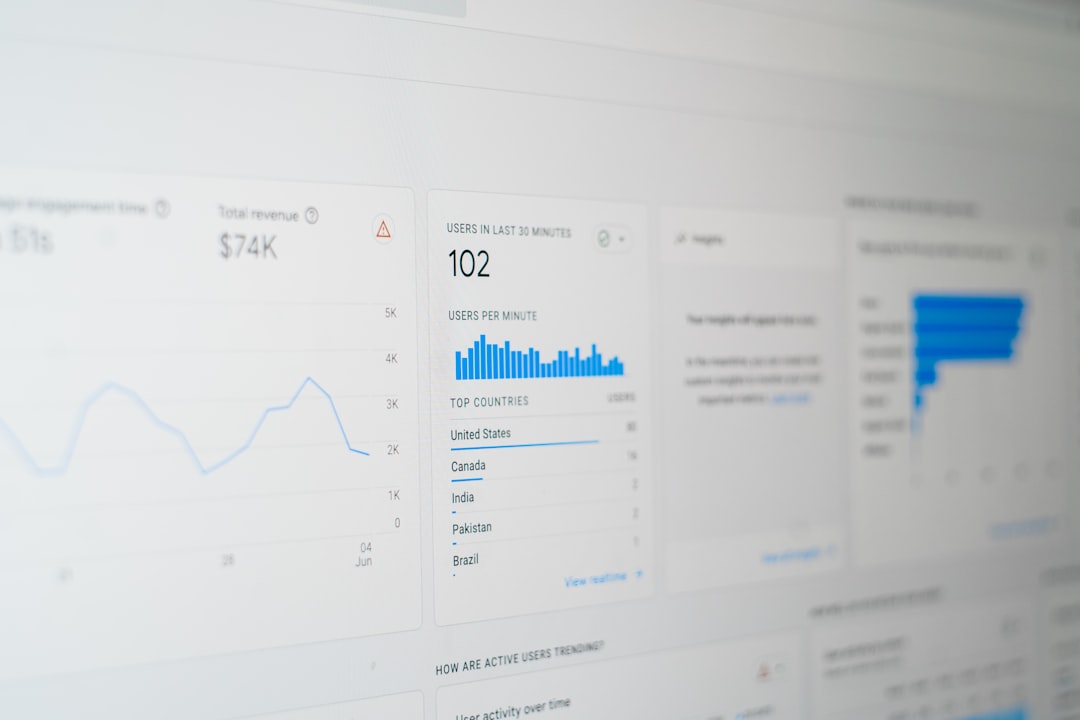
Test thoroughly using GA4's debug mode and GTM's preview functionality. Visit your website, perform the tracked actions, and verify events appear in real-time in GA4's Events report. Look for any missing parameters or malformed event names. Common mistakes include inconsistent event naming, forgetting to define parameters, or tracking events that don't align with business goals.
Once events are live, create custom conversions in GA4. Navigate to Admin → Conversions → New Conversion Event, and select the events you want GA4 to treat as conversions. Mark your highest-value actions as conversions—these become the KPIs that fuel your marketing optimization and attribution modeling.
Leveraging Custom Events for Strategic Insights
With custom events properly configured, unlock powerful analytics. Build custom reports showing which traffic sources drive the highest-value conversions. Analyze user journeys to see whether prospects view pricing before requesting a demo, or vice versa. Identify drop-off points in multi-step processes like checkout flows or application forms.
Use custom events to segment audiences. Create segments of users who completed multiple high-value actions versus one-time interactors. These segments become invaluable for email marketing, retargeting, and product development decisions. Connect GA4 to Google Ads to optimize campaigns based on actual business-impacting conversions, not just clicks.
Review event data regularly. Set up weekly reports showing conversion volume, conversion rate by source, and user journey patterns. Monitor anomalies—a sudden drop in sign-ups might indicate a form technical issue, while a spike in support tickets could reveal feature confusion requiring documentation improvements. Custom events turn data into actionable intelligence that informs product decisions, marketing strategy, and budget allocation.