
DIY Website Accessibility Audit: A Step-by-Step Guide

Why Website Accessibility Matters More Than Ever
Website accessibility isn't just a nice-to-have—it's a legal requirement and a moral imperative. An estimated 1 in 4 adults in the U.S. have some type of disability, and many rely on accessible websites to navigate the internet. Beyond the ethical considerations, accessible websites rank better in search engines, provide better user experiences, and reduce your legal liability under the Americans with Disabilities Act (ADA).
At Schiano Studios, we've seen firsthand how businesses that prioritize accessibility gain competitive advantages. However, we also understand that not every business has the budget to hire accessibility experts. The good news? You can conduct a meaningful accessibility audit yourself using free tools and best practices.
Understanding WCAG 2.1 Standards
Before diving into your audit, familiarize yourself with Web Content Accessibility Guidelines (WCAG) 2.1. These guidelines are the gold standard for web accessibility and cover three levels: A, AA, and AAA. Most businesses aim for AA compliance, which balances accessibility with implementation feasibility.
WCAG guidelines focus on four principles: Perceivable (users can see/hear content), Operable (users can navigate using keyboards), Understandable (content is clear), and Robust (compatible with assistive technologies). Understanding these principles will guide your audit and help you prioritize fixes.
Step 1: Start With Automated Testing Tools
Automated tools can catch approximately 30-40% of accessibility issues. While they won't find everything, they're an excellent starting point and are completely free. Key tools include WAVE (Web Accessibility Evaluation Tool), Axe DevTools, and Lighthouse (built into Chrome DevTools).
To use these tools, simply install the browser extensions or run them on your website. They'll generate reports highlighting errors, contrast issues, missing alt text, and structural problems. Document these findings in a spreadsheet—you'll need them for your action plan.
Step 2: Test Keyboard Navigation
Many users rely entirely on keyboards to navigate websites. Unplug your mouse and attempt to use your website with only the Tab key. You should be able to access all interactive elements in a logical order, and you should always see a visible focus indicator (highlight) showing where you are on the page.
Check that: forms are keyboard accessible, dropdown menus work with arrow keys, buttons are reachable via Tab, and focus doesn't become trapped anywhere. If you can't access something with a keyboard, your visitors with motor disabilities can't either. This is often one of the quickest wins in an accessibility audit.
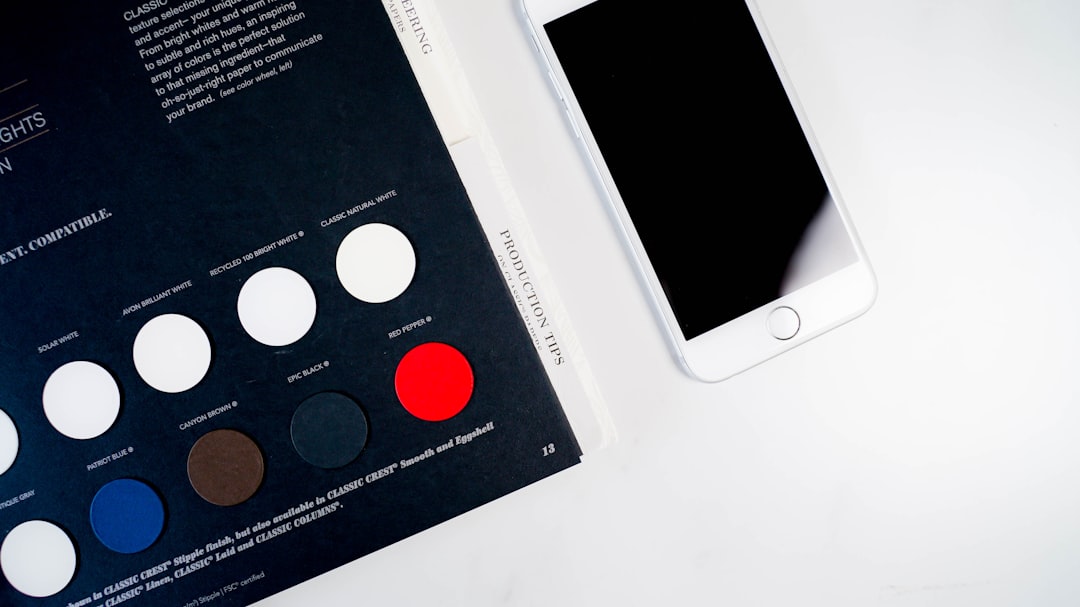
Step 3: Evaluate Color Contrast and Visual Design
Poor color contrast is one of the most common accessibility failures. The WCAG AA standard requires a contrast ratio of at least 4.5:1 for normal text and 3:1 for large text. Use tools like WebAIM's Contrast Checker or the Stark Sketch plugin to test your color combinations.
Pay special attention to links, buttons, and form fields. Many websites fail accessibility audits because they use subtle grays or rely solely on color to convey information (like "click the red button"). Ensure text is easily readable and that color isn't the only way users understand information hierarchy.
Step 4: Review Image Alt Text and Multimedia
Every image on your website should have descriptive alt text that conveys the image's purpose. This helps both screen reader users and improves SEO. Alt text should be concise but descriptive—"photo" is useless, while "woman working at standing desk in modern office" is valuable.
For videos, ensure you have captions and transcripts. Even users without hearing disabilities benefit from captions in noisy environments. Check that video players have keyboard controls and that autoplay is disabled (autoplay content is highly disruptive to screen reader users).
Step 5: Audit Forms and Input Fields
Forms are critical accessibility points. Each input field must have an associated label that's programmatically linked (not just visually nearby). Test that error messages are clear and instructive. Users should know exactly what went wrong and how to fix it.
Ensure form fields are properly marked as required, and that you're using semantic HTML (actual